Map of World War 2 Air Ferry Routes
Map of World War 2 Air Ferry Routes
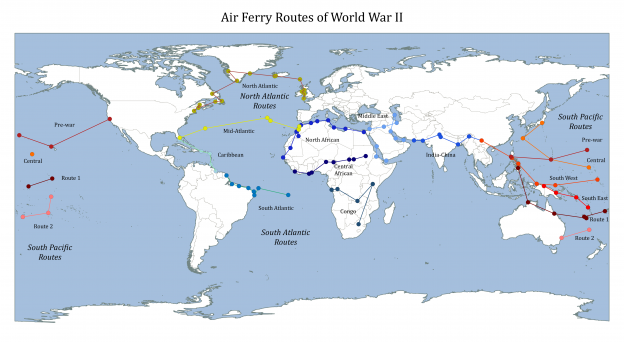
During the World War 2 air ferry routes were used to safely transport equipment, personel and supplies across the globe.
The wikipedia articles for the main routes didn’t seem to have a map image, so I thought I’d have a go at making one myself.
 |
|---|
| Air Ferry Routes of World War II |
How I Made the Map
Get Coordinates From Wikipedia Page
The articles have the coordinates for the different bases and airstrips used for each of the air ferry routes, so I figured it must be possible to plot them out. The three principal air ferry routes were:
By saving each of these pages as an html file and loading into Excel/LibreOffice Calc, I could extract the relevant data tables. I saved each data table as a separate tab-delimited text file, from which I could extract the coordinates with a python script.
Download my python script to help get the coordinates
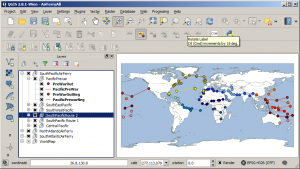
Set Up The World Map in QGIS
To set up the background world map to show the routes I followed this guide
 |
|---|
| World War 2 Air Ferry Routes - QGIS. |
This tutorial uses the Natural Earth Quickstart Kit.
Load Coordinates into QGIS
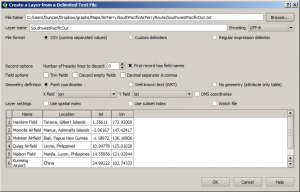
I just followed this guide to loading comma separated values. You go to Layers -> Add Layer -> Add Delimited Text Layer.
 |
|---|
| World War 2 Ferry Routes - Delimited Text File. |
Across the international date line the coordinates change sign, and QGIS isn’t sure how to correctly interpret this, which means I had to break up the files so that they would plot as vectors more or less correctly.
Convert Points to a Vector
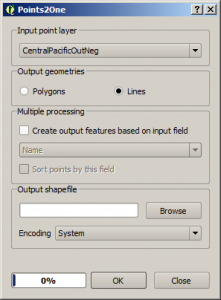
I could have just left the coordinates of the routes as individual points, but I thought it would be clearer to join them together to show the paths between them. I converted the points to vectors using the Points2One QGIS plugin. You can install it from the QGIS plugin menu. Run by going to Vector -> Points2One -> Points2One.
Select the points you want to use to form the vector, and select “Lines” to make a path, rather than a polygon.
 |
|---|
| World War 2 Air Ferry Routes - Points2One |